

The StickyFolios builder supports text editing functions as listed below. To bring up the Text Editor, highlight the text you want to change.
Bold: Click the B in the Text Edit Box.

Italic: Click the I in the Text Edit Box.

Hyperlink: Click the hyperlink icon in the Text Edit Box. This feature allows you to link out to other websites in your Text Box.

Block Text: This condenses the text in a block. This feature applies to all of the text in the section.
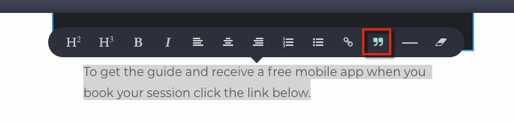
Eraser Tool: Clicking this tool removes bold, italic, links, and boxin text formatting.

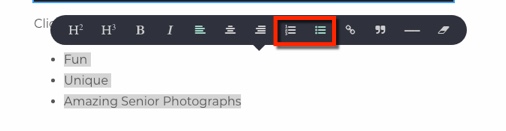
Bullet List: Type your list, it will be double spaced. Highlight the List and select the list option from the tool bar.
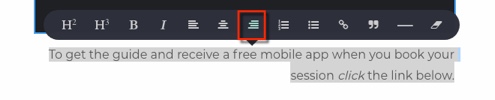
Text Aligned Right: Select the text you wish to change the alignemnt for and select the right align option form the tool bar.
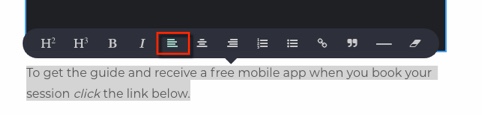
Text Aligned Left: Select the text you wish to change the alignemnt for and select the left align option form the tool bar.
Text Centered: Select the text you wish to change the alignemnt for and select the center option form the tool bar.
