

The Trash feature allows you to deactivate and delete Folios you no longer wish to use.
Folios/Albums that are moved to the Trash will stop working, but can be restored to your Folios list at any time. Once deleted from the trash bin you are not able to recover them.
The Trash bin holds up to 20 Folios/Albums. Once this limit is reached, at least one Folio should be deleted permanently or restored to the Folios list in order to make room for more Folios in the Trash bin.
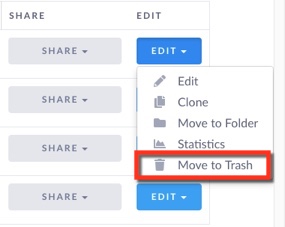
To move a Folio/Album to the Trash:
Select Move To Trash from the blue Edit Button next to your Folio. Then select Move to Trash.
The Trash bin contains a list of all Folios that have been moved to the trash. You can either restore or permently delete them.
To Open Trash Bin:
Click on View Trash Bin Lower Right Side at the bottom of the albums/Folios list.
That brings up all folios within the trash bin:
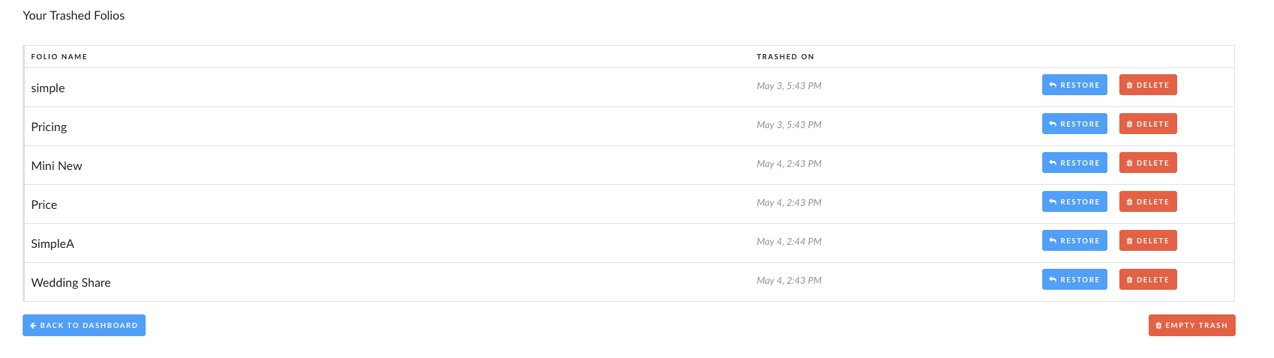

Options in Trash:
Restore or Delete Permanently.
RESTORE: (blue button)
Click on the blue Restore Button to add the Folio back to your Folios list. Restored Folios need to be Published before they will be active again.
DELETE: (red button)
Click on the red delete button. This will delete the Folio/Album p[ermanently from our system.