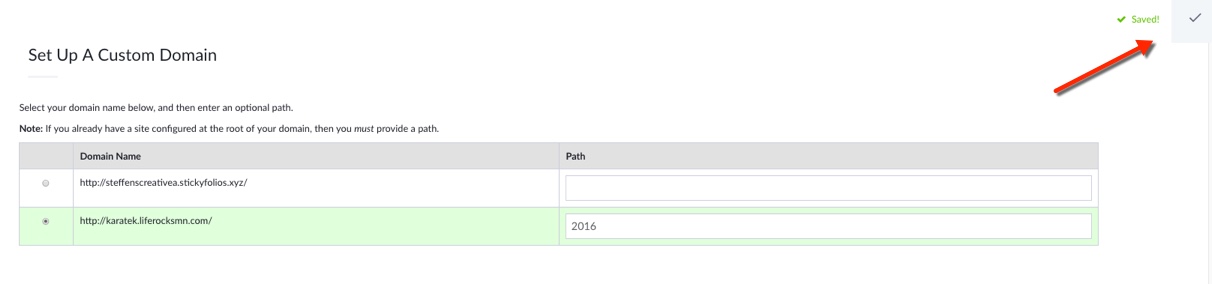
The first step is to set up your Custom Domain. If you haven't done this yet, learn how to do so here: How do I set up the Custom Domain feature?
Once you have set up your Custom Domain, you will need to add it to your StickyFolios account. You can learn how to do this here: Adding your Custom Domain to your StickyFolios account. After these two steps, you can use the Custom Domain feature when building your StickyFolios.
1. Open your StickyFolios site
2. Select the Folios URL section of the Settings Panel (if this is not displayed click on the blue arrow to the left of the builder screen to open the panel).
3. Click the toggle to turn on the Custom Domain feature.
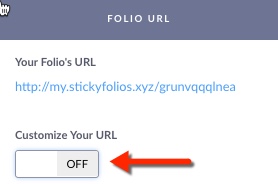
This brings up the option to configure your custom domain
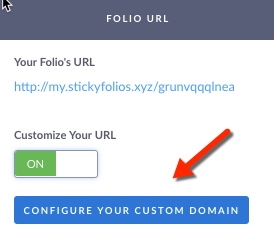
Click the Blue Button: Configure your Custom Domain this opens your domain panel.
If you have not configured your domain in the domains panel then it will not show here for you. Setting your Domain
Select the domain you wish to use it will turn green. You can then add a Path to customize your Folio further.
Each domain must be unique so you can add a Path to denote each Folio.
Note: the first time you use the domain you don't need to use a path we recommend you use the 'root' or plain domain such ahs weddings.sallysphotos.com for your business and not a client site.
Example Custom Subdomain:
weddings.sallysphotos.com
Subdomain with paths
weddings.sallysphotos.com/may17
weddings.sallysphotos.com/daveandemma
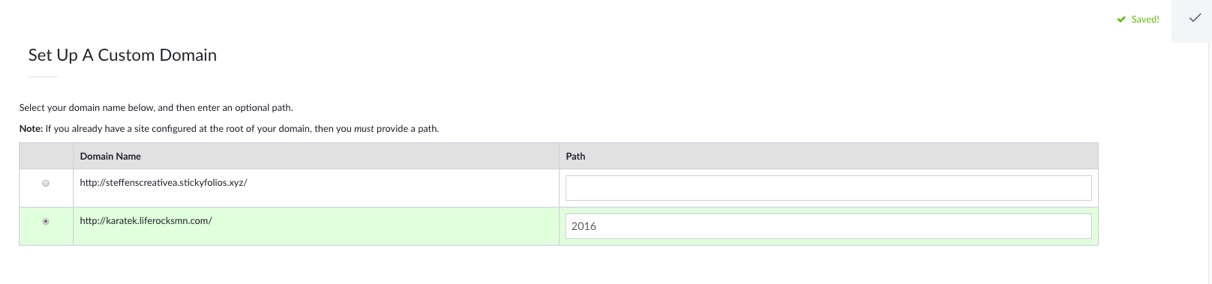
Once select your Custom Domain, close the box by clicking the checkmark in the upper right corner of the screen.