

We support embed video code from specific providers. The system supports Embed codes from: Animoto, Vimeo, Wistia, ProShow Web and YouTube
To see the Embed Box hover over the default video in a template. This will bring up the Edit Video Button.
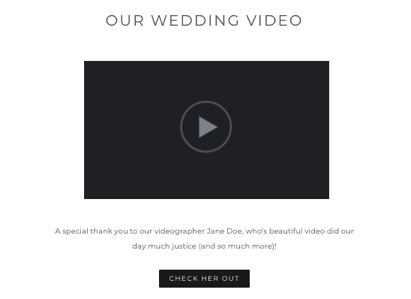
Note: once you have pasted the code into the box you will not always see a preview of the video, but instead a grey box with the play icon.
This is what you will see if a preview image is not provided by the video host. This is not how video will appear -to view the video publish your Folio and then open the link in a new browser tab.
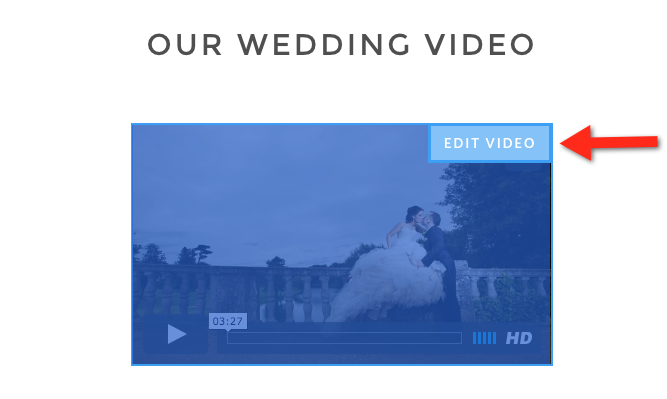
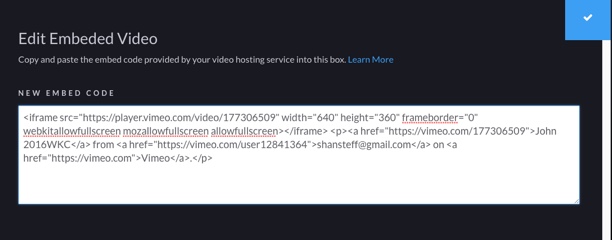
Click the Button to bring up the box to add the embed code once added click the check mark to close the box.
Note: once you have pasted the code into the box you will not always see a preview of the video, but instead a grey box with the play icon. To view your video publish the Album/Folio and open the link in a new brower window.
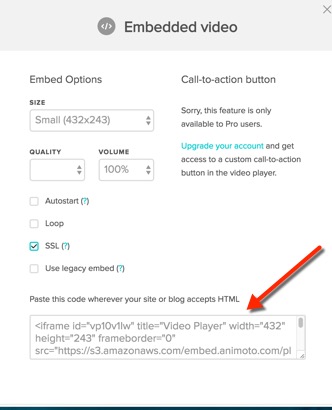
Animoto - Select the Embed from the Share section of the video settings panel.
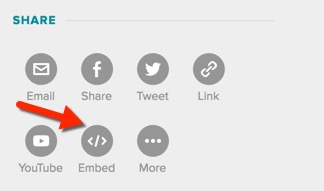
Copy the embed code.
YouTube - Click Share and select Embed.
Paste the entire code into the StickyFolios site.

To keep suggested videos from playing after your YouTube video ends, click Show More at the bottom of the YouTube Embed screen and uncheck the Show Suggested Videos box.
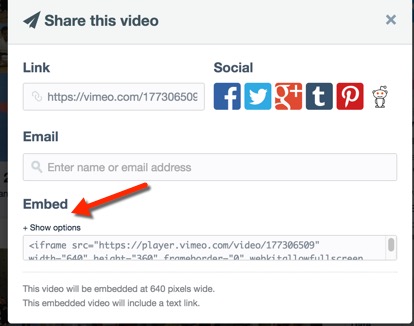
Vimeo - Click Share and copy the embed code.
Paste the code into the StickyFolios site. The new default has <div style="padding:56.25% 0 0 0;position:relative;"> remove this or any code before the <iframe code. This will allow your code to work.
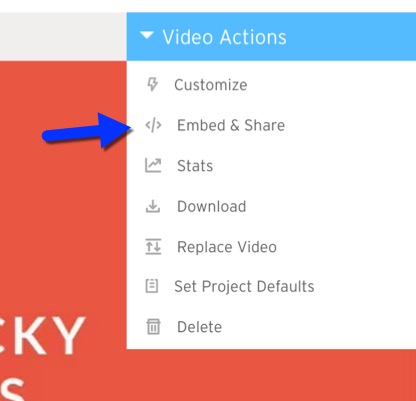
Wistia - While in the video you wish to embed, select the Video Actions menu. Then select Embed and Share.
ProShow Web:
The embed code is in your show settings.
Go to your ProShow Web shows and select the show you would like to embed.
Click the Share button followed by the <embed video> button.
Copy the code that appears.
Paste this code into the Video box within your Folio.

If you are using Proshow Producer, you can export your video to Vimeo and use the Vimeo Embed code:
Proshow Producer to Vimeo.