
Táve Studio Manager users can embed the Táve contact form into StickyFolios Buttons using the Embed Form option.
If you would like set up a Táve account, you can get started here: Táve Studio Manager
Step 1 - Finding your Contact Form Embed Code in Táve
Click Account Settings
Select Contact Form
Copy the embed link to use in the code.
Replace https://tave.com/yourstudioname-inline with the link you find in the Embed section.
<iframe id="taveForm" src="https://tave.com/yourstudioname-inline" width="100%" height="1400px" frameborder="0" scrolling="yes"></iframe>
For additional details you can view thier help articles:
To add the code to a Button in the StickyFolios builder:
To add your Tave embed code to the StickyFolios Builder:
1. Select your Button
Click the Button to edit
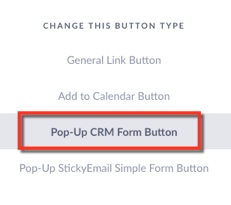
Change the button Type - to Pop-Up CRM Form Button
2. Enter Data
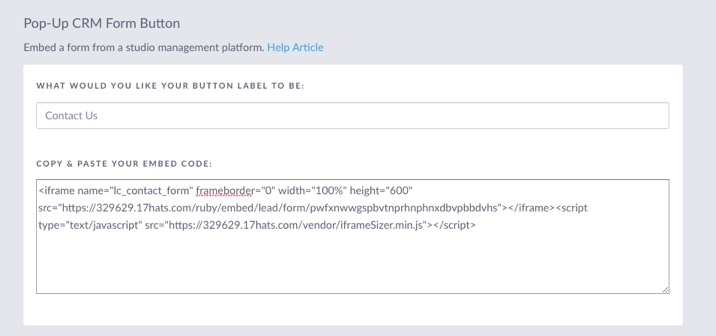
Enter the Button Label. This text will display on the Button in your Folio
Paste your embed code into the Copy and Paste Your Embed Code Box
3. Click the green Save & Close button to save the changes