
To change Button Background Colors or Typeface, open the Design Options Section of the settings panel.

You can change both the color of the Button and its Typeface. The colors you choose impact all Buttons within a specific folio.
To change the Button Background Color:
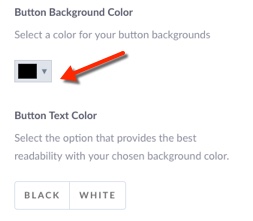
Select Button Background Color from the panel.
Click the arrow next to the color box.
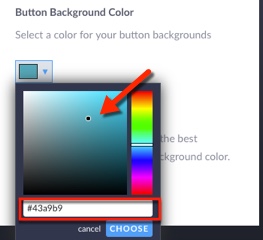
This will bring up the color picker. You can select a color by clicking the color box or you can paste a hex code into the hex code box.
Next, select either black or white for the Button Text Color.
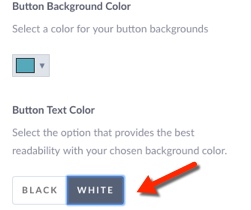
Once the update has been made, all Buttons in your Folio will reflect your selections.