

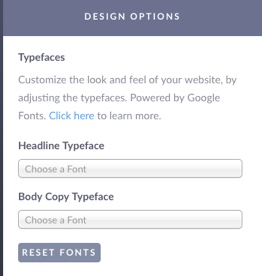
To change the Typeface in a StickyFolio, click Design Options in the Settings Panel. You can update the Headline Typeface (for headlines and subheads) or the Body Copy Typeface. The default Typeface for StickyFolios templates is Montserrat.
Typeface varieties supported in StickyFolios are Google Fonts.
We suggest you start by looking through the fonts here - Google Fonts before adding a Typeface to your Folio.
To select a Typeface:
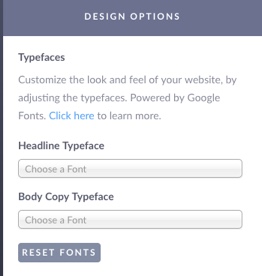
Place your cursor in the search box. This will bring up a Google font drop-down list.
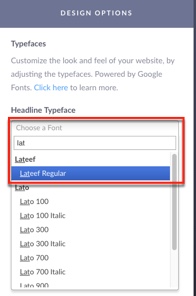
To find a specific font, start typing the font name. This will bring up a font list based upon the letters typed (example: Lato)
Once you see your font (example: Lato 700) select it from the drop-down list.
Your selected fonts will appear in the Typefaces Panel.
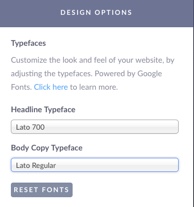
If you would like to use the StickyFolios default Typeface, click Reset Fonts.
Here are the Default Fonts for the various styles:
Shale: Montserrat
Onyx: Playfair Display
Riverstone: Vollkorn