

Yes you can change the name of a StickyFolio as it shows on your Folios list in the Dashboard.
Note: this is an internal name only and will not change how the Folio displays when shared on social media
1. Go to your Folios List in the builder. Click here to go to your Folio list.
Follow the steps below once you are in your Folios Dashboard.
2. Click the Edit Button to the right of the StickyFolio name you plan to update.
3. Open the Settings Panel (if not already open) by clicking the > symbol on the left side of the screen.
4. At the top of the Settings Panel, click on the name of the StickyFolio or StickyAlbum to edit.
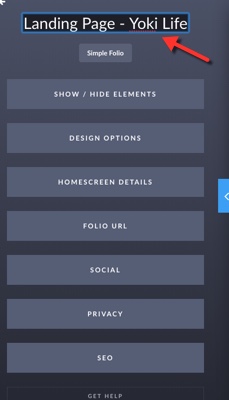
5. Click the blue publish button to publish the changes. Note the name will change without publishing. Other setting changes do require you to publish the Folio to take effect.